
Assigning MicroSkills
An API key only does what you allow it to do. This page shows you how to choose the MicroSkills each key can discover and run, and how Capability Sets — including the Starter sets we provide — keep that choice easy to reuse.
You’ll do this in two places in the dashboard. MicroSkills is where you set access for one key. Capability Sets is where you build a named bundle once and hand that same bundle to as many keys as you like.
What a key can run
Every API key has one access mode. Open MicroSkills, pick the key, and you’ll see the mode connected to it. The page opens read-only, so you can look around before anything changes.
| Mode | What the key can run |
|---|---|
| All MicroSkills | Every MicroSkill enabled for your workspace, including ones enabled later. This mode follows the workspace catalog on its own. |
| Selected MicroSkills | Only the MicroSkills you grant directly, plus the MicroSkills inherited from the Capability Sets attached to this key. |
| None | Nothing. The key stays in place, and calls that need a MicroSkill are refused until you give it access again. |
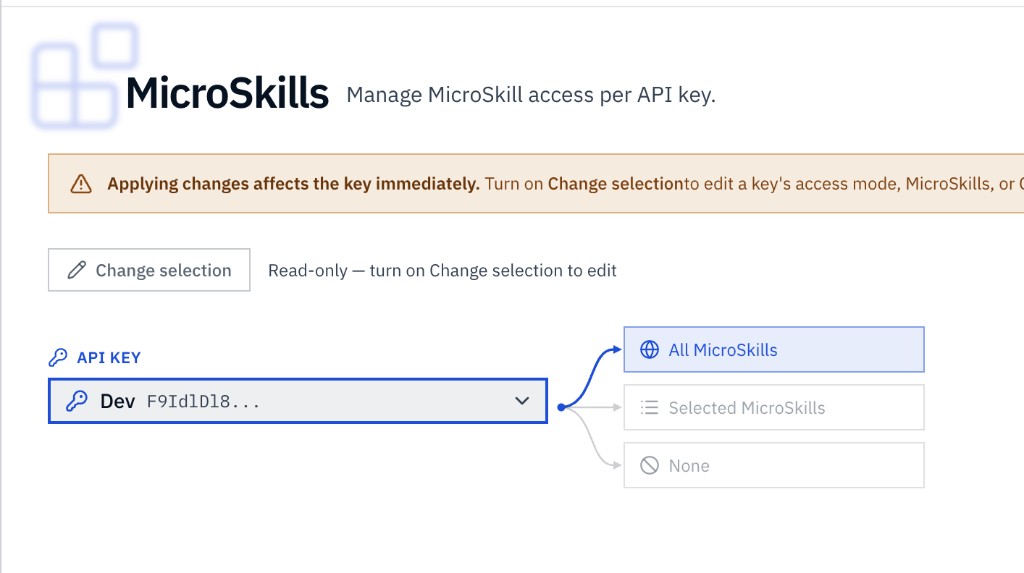
These are the same three modes described under Authentication (ALL_ENABLED_SKILLS, SELECTED_SKILLS, and NONE). The dashboard uses the shorter names above.
Selected MicroSkills
This is the mode where Capability Sets matter. A key in Selected MicroSkills can run the union of two lists:
- Direct grants — MicroSkills you tick on for that key alone.
- Inherited grants — MicroSkills that arrive because an active Capability Set is attached to the key.
The Selected MicroSkills chip shows both as total (direct). If it reads 137 (2), the key can run 137 MicroSkills, and 2 of those were granted one by one. The rest come from the sets on the right. A MicroSkill that appears in more than one set still counts once.
Skills that arrive through a set stay checked, and the row tells you which set granted them. To take one away, remove that set from the key, or edit the set.
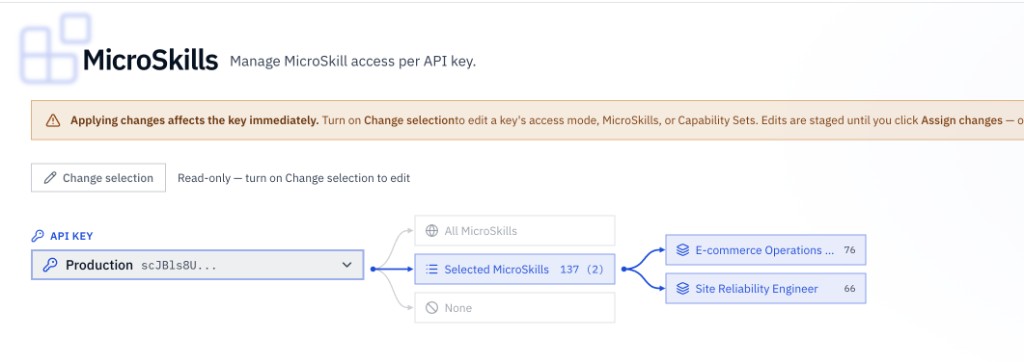
Capability Sets only contribute while the key is in Selected MicroSkills. On All MicroSkills or None, the page says so, and the set chips stay out of the way. A set that is assigned but not Active appears faded. It stays attached, and it grants nothing until it is Active again.
While you are editing, a set you have just added shows Pending. The count on the chip includes it right away, and the skill rows catch up when you apply. A set you remove is struck through until you apply, the count leaves it out, and you can undo that removal before you apply.
Change a key
Head to MicroSkills. The banner at the top is the short version of this section: turn on Change selection, edit, then click Assign changes.
- Choose the API key. The page remembers the last key you opened.
- Turn on Change selection. Until you do, the mode, the skill list, and the sets are read-only.
- Pick All MicroSkills, Selected MicroSkills, or None.
- In Selected MicroSkills, tick the individual MicroSkills you want, and — if you administer the workspace — use Add Capability Set to attach an active set. Search the picker by name or description. Double-click a set chip to open that set on the Capability Sets page.
- Click Assign changes. We’ll ask you to confirm with Apply changes. From that moment the key’s live callers use the new access.
If you turn Change selection off, or switch to another key, while edits are still staged, we’ll ask the same question: apply them, or stay and keep editing. Nothing is written until you apply.
The skill list is searchable and filterable by category, and it pages through the catalog, so a large workspace stays usable. Double-click a row to open that MicroSkill’s documentation. A skill your workspace has disabled, or that a platform administrator has blocked, can’t be granted. A skill that isn’t in your current plan can still be granted, so it becomes usable as soon as the plan includes it.
Capability Sets
A Capability Set is a reusable bundle of MicroSkills with a name, a description, and a status. Assign it to a key in Selected MicroSkills and that key inherits the bundle. Edit the set later and every key it is assigned to follows along.
Open Capability Setsin the dashboard. The page introduces itself as building reusable bundles and assigning them to API keys in one step. Across the top you’ll see how many sets you have, and how they break down:
| Summary | What it counts |
|---|---|
| Total sets | Every set in the workspace, including archived ones. |
| Active | Sets that currently grant their skills to assigned keys. |
| Disabled | Sets you have kept, which grant nothing until you activate them. |
| Archived | Retired sets. They grant nothing, and the other views hide them unless you open this filter. |
| Assigned to keys | Active sets attached to at least one API key. |
| Unassigned | Active sets that no key is using yet. |
Click a number to filter the list. You can also switch the tabs along the list — All, Active, Disabled, Archived, Assigned, and Unassigned — search by name or description, and open Filters to narrow by origin (Starter or Custom), when the set was last updated, or who created it. Export downloads the sets that match the filters you have on, as a CSV.
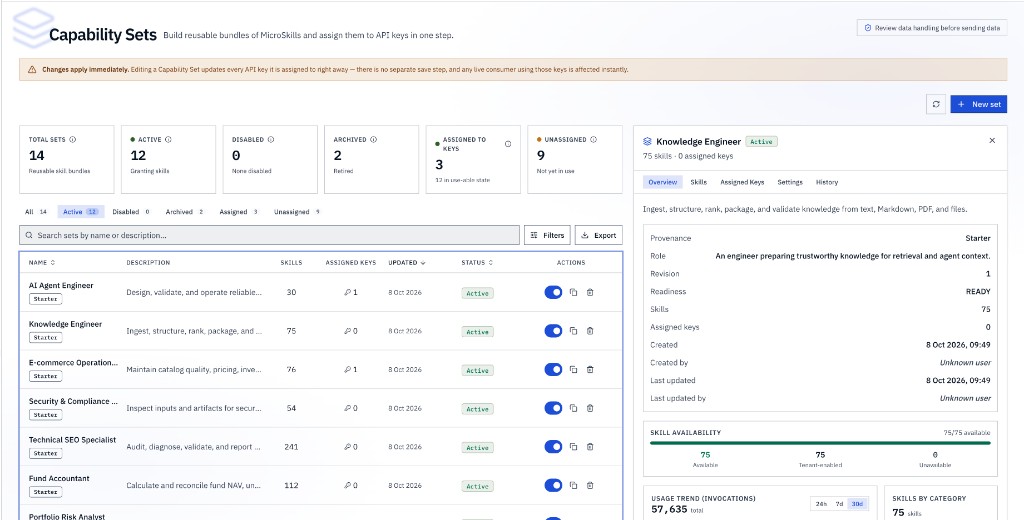
If Capability Sets aren’t enabled for your workspace, the page says so and points you to your administrator. The MicroSkills page then manages access with the three modes and direct grants only.
Starter sets
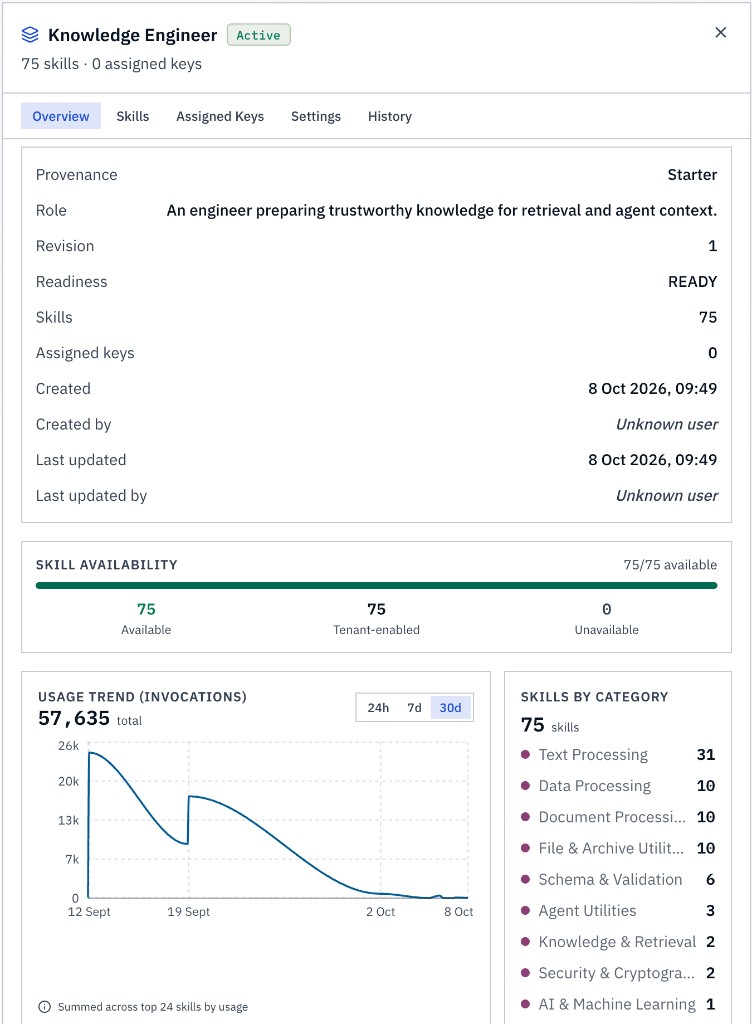
Starter sets are bundles we maintain for you. In the list they carry a Starter badge. Open one and Overview labels its provenance as Starter, then shows the role it was built for, the revision you’re on, and a readiness state.
Readiness is one of READY, PARTIAL, NOT_SUPPORTED, or UNKNOWN. It reflects whether the skills that set depends on are available in your workspace. The Skills tab is where you see each member: whether your workspace has it enabled, whether your plan includes it, whether it is effective right now, and whether the set marks it Required or Optional.
The skills inside a Starter set are read-only. You have three ways to put one to work:
Use this set
Use this set applies the bundle to one active key, and it asks you to review the change before anything moves.
- Choose the API key. You’ll see its current mode beside the name.
- Choose how to apply it. Replace what this key can access switches the key onto this set and removes what it could do before. Add this set to the current selectionis available only when the key is already on Selected MicroSkills — it keeps the key’s current grants and adds this set.
- Click Review change. You’ll see the mode change, how many sets and individual skills are added or removed, and how many MicroSkills the key will be able to run. If a required skill isn’t available, or the set is turned off and would grant nothing, the review says so. If the change would leave the key with no access for a moment, the review says that too — calls are refused during that moment, and you’ll need to confirm again if the change stops halfway.
- Click Use this set to apply it. The key updates immediately.
Upgrade a Starter set
When we publish a newer revision, the set offers Upgrade. The set stays on its current revision until you confirm. The preview tells you the revision you’re moving to, whether the name changes, how many skills are added, removed, or newly required, which skills would become unavailable, and how many assigned keys will pick up the new revision. Confirm upgrade is what moves those keys.
Make it your own
Duplicate & customizecopies a Starter set into a set you own. Give it a name (we suggest the original name plus “Copy”), and leave Copy skills on if you want the same members. API key assignments are not copied, so the new set starts unassigned. From there you can edit it like any set you created.
Sets you create
Click New set. Give it a name you’ll recognize — something like the job it covers — and an optional description, then select the MicroSkills that belong in it. Create set saves it. A brand-new set starts unassigned, so every key keeps the access it already has.
Opening a set you already own starts read-only, the same way a key does. Turn on Change selection, adjust the name, the description, or the skills, then Assign changes. We’ll ask you to confirm, and we’ll tell you how many keys are about to change with it. Leaving with edits still staged gives you the choice to apply them, discard them, or stay.
Each set is in one of three states:
| Status | What it does |
|---|---|
| Active | The set grants its skills to every key it is assigned to, as long as that key is in Selected MicroSkills. |
| Disabled | The set is kept, and it grants nothing until you activate it. Disabling takes effect immediately, and every assigned key loses the skills this set was contributing. |
| Archived | The set is retired and read-only. It grants nothing. Unarchive restores the same set — its id, its assignments, and its history — and puts its skills back on the keys it was assigned to. |
Disable and archive both ask you to confirm, and both name how many keys will lose the skills the set contributed. Archive is reversible: the set stays in history, and you can find it again under the Archived tab. While it is archived you can’t edit it; duplicate it if you want a fresh copy you can change.
Duplicateon a set you own works the same way as on a Starter set: a new name, an option to copy the skills, and no key assignments carried over. That’s the safe way to try a variation before you point keys at it.
Inside a set
Click a row to open the detail panel. Five tabs cover what you’ll want to check before you assign it, and after you have.
Overview
Overview shows the description, who created the set and who last updated it, and when. If that person isn’t a current member of your workspace, you’ll see Unknown user. A set that was duplicated notes that here.
Skill availabilitysplits the bundle into skills that are effective in your workspace right now, skills your workspace has enabled, and skills that are unavailable. A skill can be in the set and still be unavailable — for example when it isn’t included in your plan, or when the workspace has it turned off.
Usage trend (invocations) adds up calls to the MicroSkills in the set over the last 24 hours, 7 days, or 30 days. Those calls are counted for the skills themselves, across your workspace, so a skill that other keys also run is included. When more than 24 skills in the set have been used, the line shows the 24 most-used ones and the note under the chart says so. The total above the chart still includes every skill in the set. Beside it, Skills by category shows how the bundle is composed.
Skills, keys, settings, and history
- Skills lists every member, with its key, its category, and whether it is effective. Search when the bundle is long. On a Starter set this tab reminds you the list is read-only.
- Assigned keyslists the keys using this set, with each key’s access mode, owner, and when it was last used. Manage opens MicroSkills with that key already selected. If no key uses the set yet, Assign it to a key takes you there.
- Settings is where an admin activates or disables the set. Activating applies immediately. Disabling asks you to confirm first, because assigned keys lose the skills this set contributes.
- History is the record of edits, status changes, and key assignments for this set, newest first.
Along the bottom of the panel you’ll also find Assign to keys, which opens MicroSkills so you can attach the set while you’re editing a key, and Use this set when you want the guided apply described above.
A practical path
If you’re setting this up for a real agent, this order keeps the blast radius small:
- Create a separate API key for that agent. Authentication covers how to create, rotate, and revoke keys.
- Look through the Starter sets and open the one whose role matches the job. Check readiness and skill availability before you rely on it.
- If it fits as-is, use Use this set and choose Replace what this key can access for a clean start, or add it to a key that already has a selection.
- If you need a variation, duplicate the Starter set, edit the copy, and assign the copy. The original stays intact for the next key.
- Keep each set aimed at one job. When a set is no longer in use, archive it so it can’t keep granting access you’ve moved on from.
Both MicroSkills and Capability Sets link to Review data handling before sending data. It’s worth a look before a key starts carrying real workloads — it describes how MicroSkill calls handle the data you send.
What your agent sees
Once a key is connected over MCP, search and execution stay inside the access you just set. Add a grant or a Capability Set and the agent’s results follow. Remove one and those MicroSkills drop out. On each call, the agent sees that key’s current access.
The next page, Dynamic Skill Resolution, is how that agent finds the right MicroSkill inside the catalog you’ve allowed, without loading the whole list into its context.